
Connect over SSH from another computer
Add your public key, get the host and port for your server, and open a terminal on it from any computer. Your private key never leaves that computer.
Why SSH uses a key instead of a password
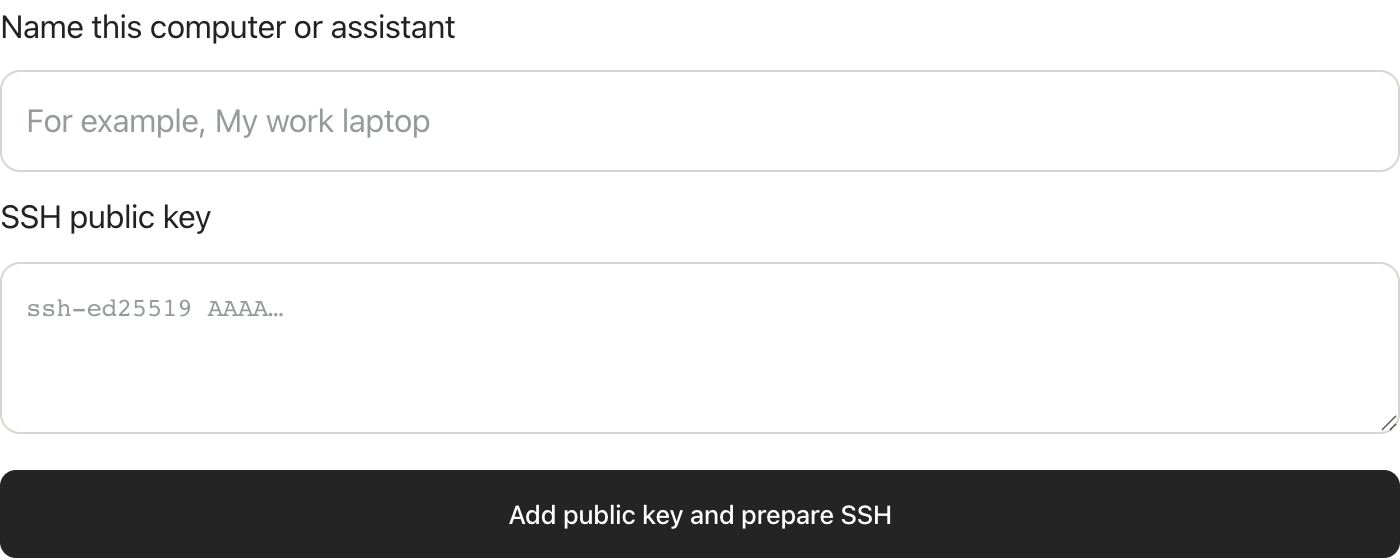
This is the form in Public access → Connect over SSH → SSH keys & setup. The first field is a friendly label for the connecting computer or assistant. The second accepts one public-key line from its .pub file. It is not a password field: never paste a private key or a macOS password.
Where an SSH session actually lands
Remote SSH connects to your Linux VM, not to macOS or the MacServe VPS. Keep the Mac awake and online, Linux running, public access enabled, and eligible account access and data remaining.
The latest app can install a managed public key through its authenticated helper, without an existing public SSH login. It uses your existing non-root Linux account and SSH daemon; unrelated keys and daemon settings are preserved. Custom SSH configurations may require manual review.
Create your SSH key
On the computer you will connect from, use your own SSH key or create a dedicated Ed25519 key. Choose a different filename if this one already exists; do not overwrite an existing key. Keep the private file on that computer. Only the .pub file is copied into Linux.
ssh-keygen -t ed25519 -f ~/.ssh/macserve_ed25519 -C macserve-clientRead the public key you just made
ssh-keygen prints a fingerprint (SHA256:…) and a randomart picture to the screen. Neither is the key, and neither is accepted. The key itself was written to a file. This command prints it, and the second copies it straight to the clipboard.
What you paste is one long line beginning ssh-ed25519 AAAAC3NzaC1lZDI1NTE5 and ending with the comment you gave it. The matching file without .pub is your private key: it never leaves that computer and is never pasted anywhere.
cat ~/.ssh/macserve_ed25519.pub
pbcopy < ~/.ssh/macserve_ed25519.pubAdd the key and enable public access
In Public access → Connect over SSH → SSH keys & setup, enter a label and paste the entire public-key line from your .pub file, the one starting ssh-ed25519, not the SHA256: fingerprint ssh-keygen printed. Choose Add public key and prepare SSH. Never paste a private key. The port is allocated automatically or an existing SSH forward is reused.
Wait until your specific key says Key installed. If the Mac is offline, the request stays pending. The panel returns the real Linux username, public address, port and host identity after the helper confirms. Public access must also be relay-confirmed before you connect.
For an older app, add the public key through the local Linux terminal and enable remote SSH manually, or update the app. Do not delete an existing VM to get the new helper.
What happens after you add the key
You do not need to add the same key again. The form changes to Preparing your SSH access, then Connect to your Mac server once your specific key is installed and public access is confirmed. Keep the page open to watch it update, or return to SSH keys & setup later.
If your key is installed but access is paused, offline or still being confirmed, the panel explains that separately. Add another key is optional, for a different key, computer or assistant. With several keys, choose the computer you are connecting from. Manage saved keys contains removal controls.
Connect with a trusted host identity
In the connection steps, choose Copy trusted host entries and save them as a plain-text file named macserve-known-hosts on the connecting computer. Open Terminal in that folder. These entries come from inside the already-authenticated VM, not an unauthenticated scan of the public Internet.
Choose Copy verified SSH command and replace YOUR_PRIVATE_KEY with your actual private-key path. The guided command already includes -o UserKnownHostsFile=./macserve-known-hosts. If you saved that file elsewhere, change the path to match. Keep StrictHostKeyChecking=yes. An unexpected fingerprint change is a reason to investigate, not disable the check.
MacServe account and macOS login passwords are not SSH credentials. SFTP uses the same identity and key with capital -P for its port. Once connected, install and run your application, then return to Apps & connections to make it public.
Remove a key and close access
Remove key in the panel requests removal of that managed entry. It becomes Removed only after the Mac acknowledges it. An offline Mac remains pending. Other managed grants or manually installed copies of the same public key are separate.
Revoking MCP access stops platform calls but does not remove SSH keys. Removing an SSH key prevents future logins through that entry; it does not end existing SSH sessions. End those inside Linux if necessary.